
Improving User Awareness in Securing their Moodle Accounts through Moodle User Tours
Author : Aira Marie Coronado
In the digital age, the security of all online platforms is paramount. Moodle, a widely used Learning Management System (LMS), is no exception. With a diverse user base, including students, educators, and administrators, ensuring the security of Moodle accounts is critical. Our previous newsletter discussed the Moodle Tripartite Security Model where Moodle, Nephila Web as Moodle provider, and you as end-users have a shared responsibility in making sure that the platform is secure from the infrastructure level up to the application level.
One effective strategy to enhance security on the application level, is to provide user awareness. There are various ways to do that like providing training on cybersecurity essentials, highlighting that the users should be aware of malwares, phishing links etc. In this article we will discuss how we can improve user awareness in securing their Moodle Accounts through the implementation of Moodle User Tours.
Why Focus on User Awareness?
- Preventing Unauthorized Access. One of the most common security threats is unauthorized access. By educating users on the importance of strong passwords and the risks of sharing login information, institutions can significantly reduce this risk.
- Promoting Best Practices. Users often overlook security best practices. User tours can reinforce the need for regular password changes, recognizing phishing attempts, and securing personal devices
- Building a Security-Conscious Community. When users understand the importance of security and how they can contribute, the entire Moodle ecosystem becomes more resilient against threats.
What are Moodle User Tours?
Moodle User Tours are interactive guides that help users navigate the platform at the beginning of their access to the platform or to a course. These tours provide step-by-step instructions and highlight important features and best practices. By leveraging this tool, institutions can educate their users on various aspects of Moodle, including account security.
Develop a Clear and Concise Instructions
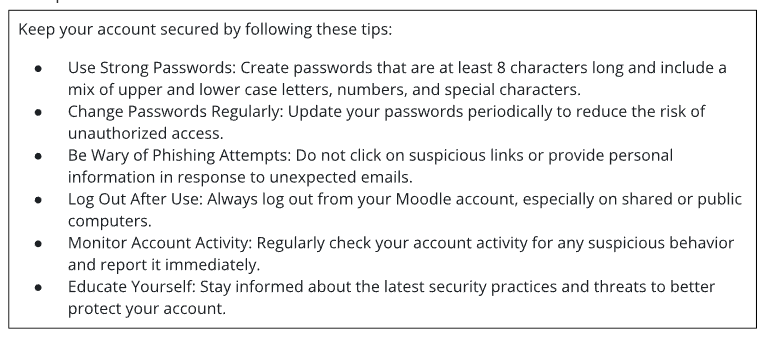
- Work with your IT and security teams to identify the most critical security practices for your institution.
- Ensure that the information provided in the tours is easy to understand. Use plain language and avoid technical jargon.
- Example:
Set Up the User Tours
- You can set up the user tours if you are a Site Administrator. Go to Site Administration > Appearance > User Tours
- You will see the list of user tours available currently on your Moodle LMS. Scroll down below to find the “Create a new tour” button.
- Complete the following details
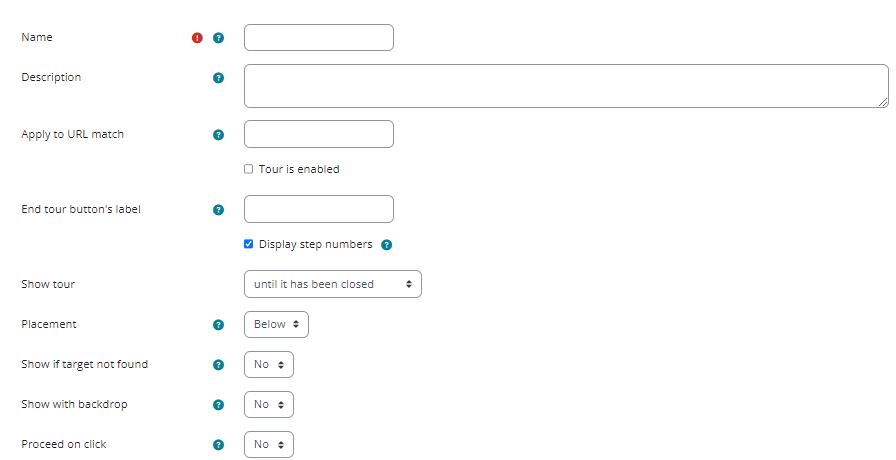
- Name : Supply the name of this User Tour. In our case we use “Security Awareness Notice”
- Description : Supply the description of this tour.
- Apply to URL match : Tours will be displayed on any page whose URL matches this value. You can use the % character as a wildcard to mean anything. Some example values include:
- /my/% – to match the Dashboard
- /course/view.php?id=2 – to match a specific course
- /mod/forum/view.php% – to match the forum discussion list
- /user/profile.php% – to match the user profile page
- If you wish to display a tour on the site home, you can use the value: “FRONTPAGE”.
In this case, we want the notice to be displayed every time they login at the Dashboard/My Course so we input – /my/%
- End User Button label : You can optionally specify a custom label for the end tour button. The default label is ‘Got it’ for single-step and ‘End tour’ for multiple-step tours.
- Show Tour : Can be ‘until it has been closed’ and ‘each time a filter matches it’
Since we want this to be displayed every time a user logs in, we will select ‘each time a filter matches it’.
- Placement : A step may be placed above, below, left or right of the target. Above or below is recommended, as these adjust better for mobile display. If the step does not fit on a particular page in the specified place, it will be automatically placed elsewhere.
- Show if target not found : Show the step if the target could not be found on the page.
- Show with backdrop : You can use a backdrop to highlight the part of the page that you are pointing to. Note: Backdrops are not compatible with some parts of the page such as the navigation bar.
- Proceed on click : Proceed to the next step when the target is clicked on.
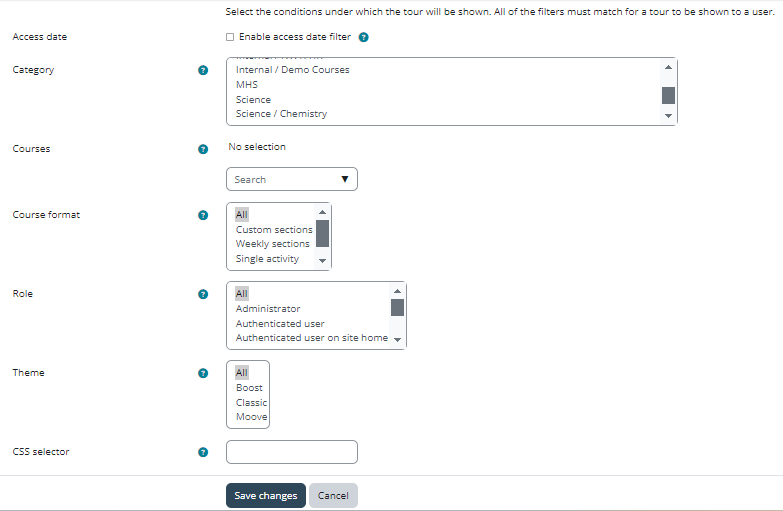
- Apply Tour Filters
- Select the conditions under which the tour will be shown. All of the filters must match for a tour to be shown to a user.
- Save Changes
- Set Tour Contents
- Once saved, click on the name of the tour/hamburger icon to view and add your contents.
- Click on the link ‘New Step’
- Complete the step content
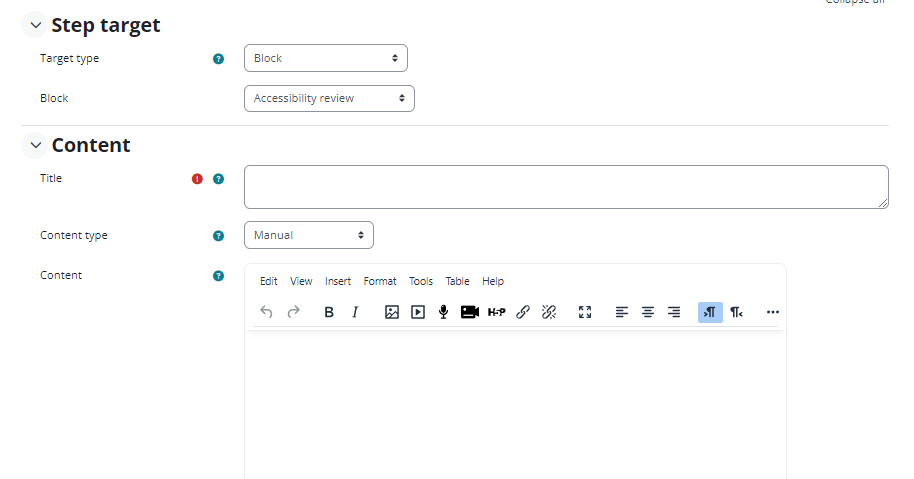
- Target Type : Each step is associated with a part of the page – the target. Target types are:
- Block – for displaying a step next to a specified block
- CSS selector – for accurately defining the target area using CSS
- Display in middle of page – for a step which does not need to be associated with a specific part of the page
Select : Display in middle of page
- Block : Identify on which Moodle “Block” this step should be pointed to, if it is associated with a specific part of the page.
- Title : Supply the title of this step
- Content Type : Manual – content is entered using a text editor Language string ID – in the format string identifier,component (with no space after the comma)
- Content : Content describing the step may be added as plain text, enclosed in multilang tags (for use with the multi-language content filter) if required.
In this area, we can already add the content sample we created before.
- Save Changes
- You may repeat the process if you require additional steps to be added in this Security Awareness Notes in the User Tour. For this example, we will have only one step.
Based on our setup, this is the final outcome.
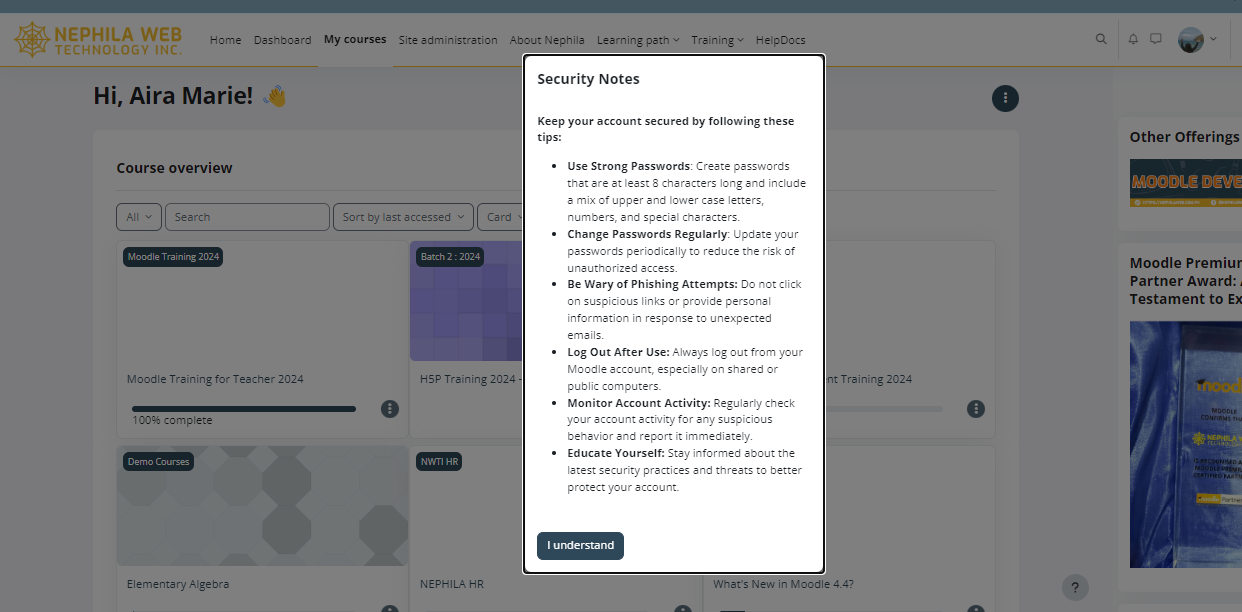
Moodle User Tours offer a proactive approach to enhancing user awareness and securing Moodle accounts. By guiding users through essential security practices, institutions can create a more secure online learning environment.
As technology continues to advance, the importance of user education in cybersecurity cannot be overstated. Implementing extra measures like this user tours is a step forward in safeguarding the digital learning experience of our end users.